This guide explains what should be done prior to creating your first class using the Classes & Events Dashboard.
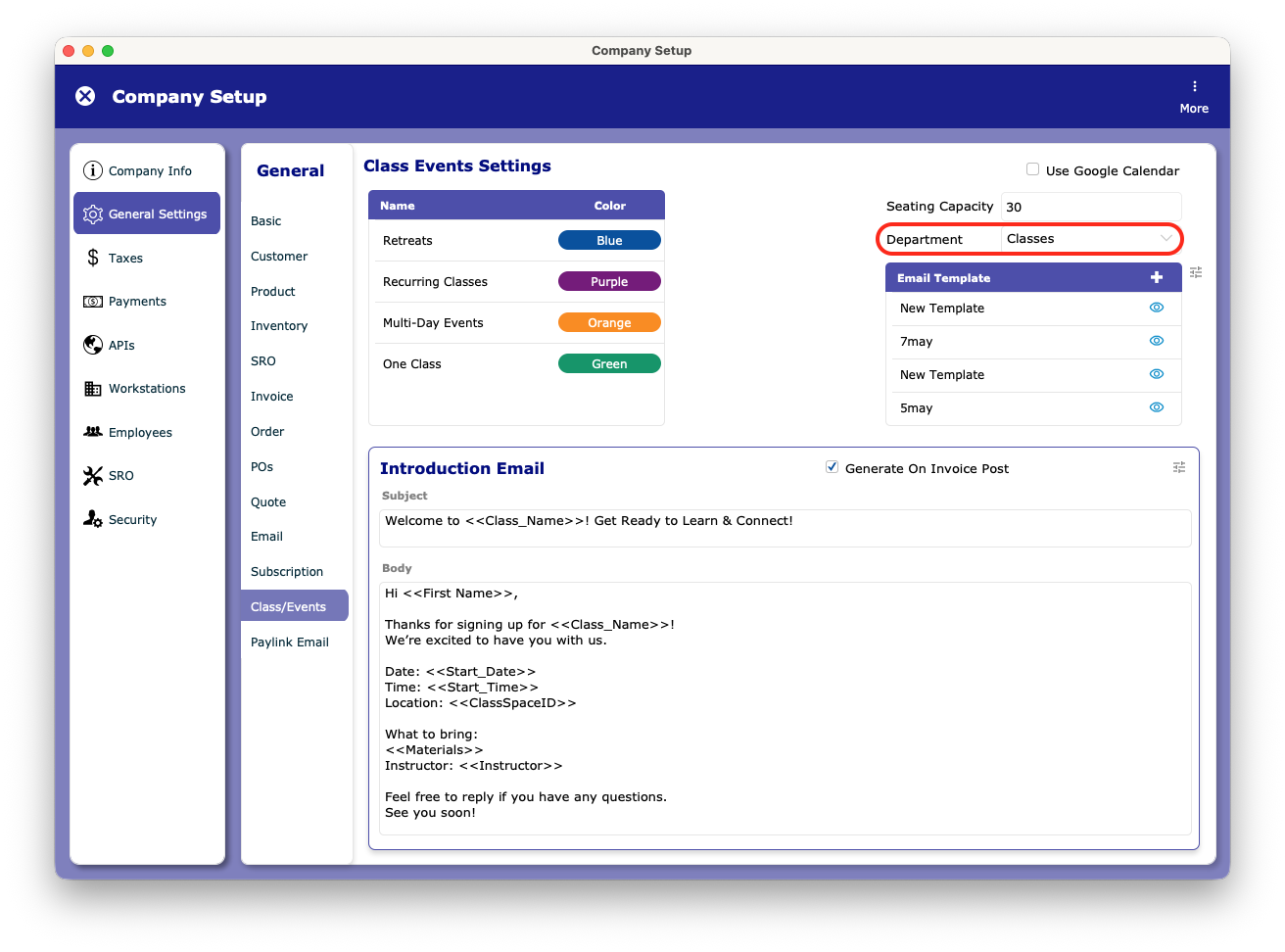
Before accessing the dashboard, you should create a new department to house your events. Most people choose Classes, but it’s up to you.
Once that’s been created, go into your settings. Under General Settings > Class/Events, and choose that department as your default for new classes when you create them.
1. Accessing the Classes & Events Dashboard
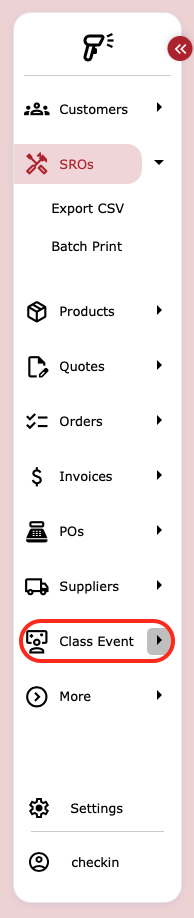
- From the left sidebar, click on Class Event.
- The Classes & Events Dashboard will open.
This dashboard is the central place to manage all your classes and events.
2. Managing Instructors for a Class
To create or assign instructors to a class:
- Open the Classes & Events Dashboard.
- Click the
 Instructors icon located at the top-right corner of the dashboard.
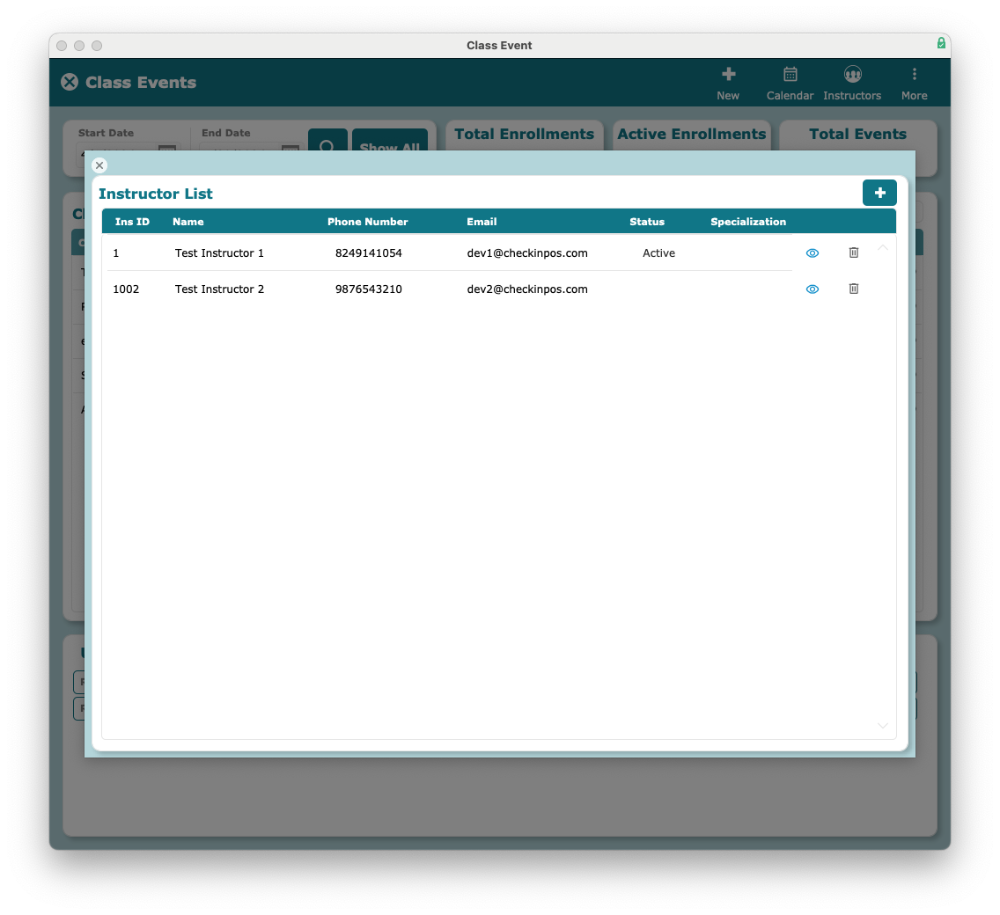
 - This opens the Instructor Management panel.
In the Instructor panel:
- You will see a list of instructors already created.
- You can:
- Select an existing instructor
- Create a new instructor with the + icon available on the top .
- The existing instructors will be available as a pop menu when creating the class.
Save your changes after assigning or creating instructors.
[!warning]
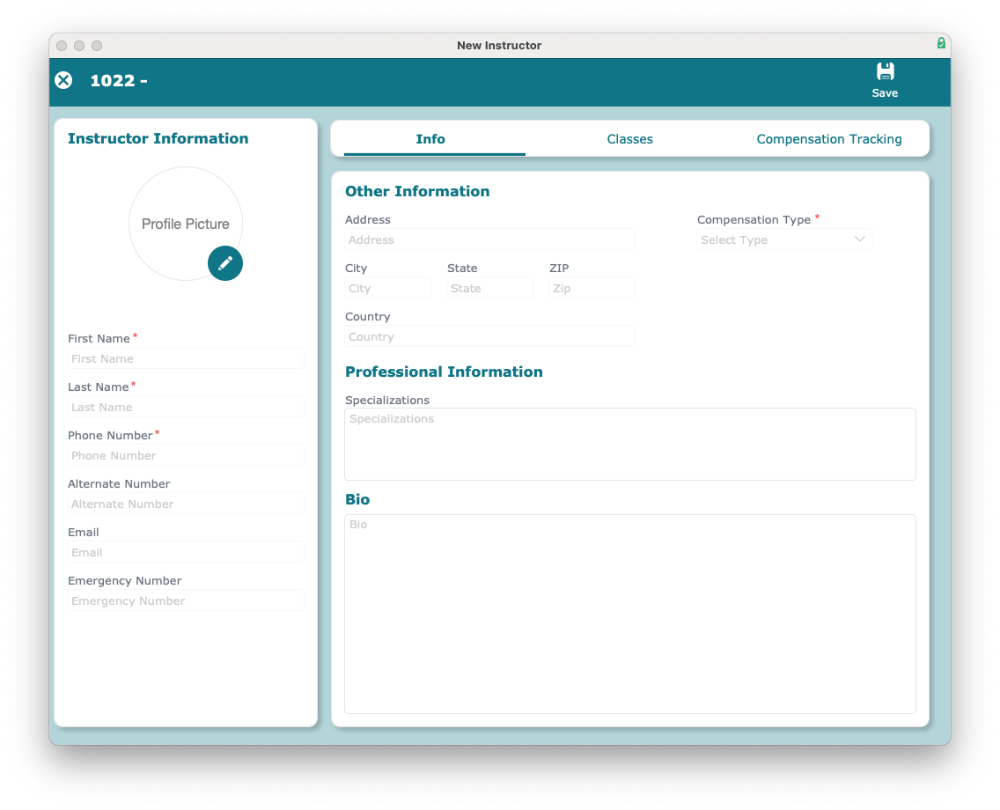
The fields with * are required fields to be filled when creating new instructor